
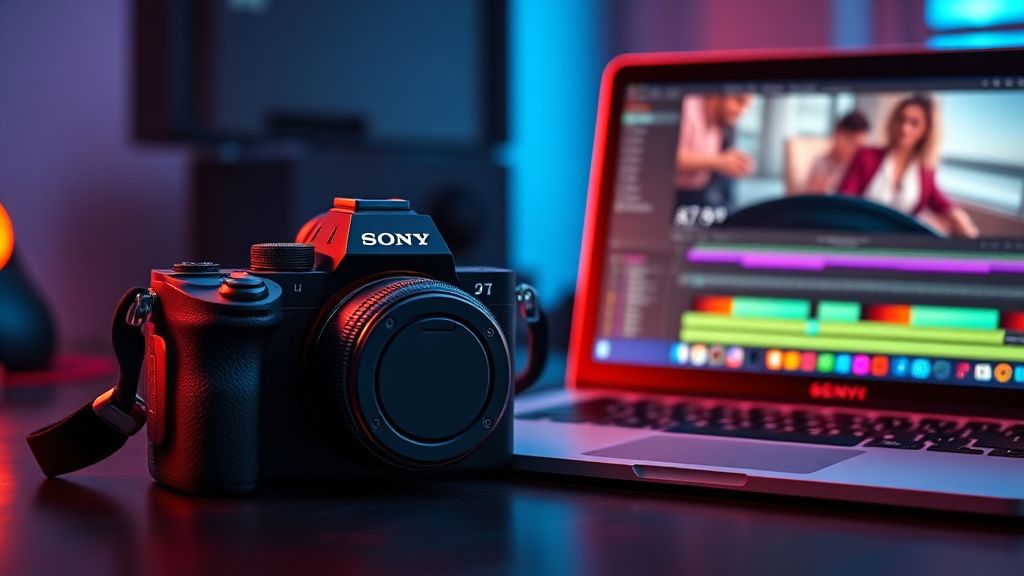
Hey everyone, I've been pulling my hair out for weeks. I shoot in 4K on a Sony A7 III (XAVC S 4K, 100Mbps), edit in Premiere Pro 2024, and export using the YouTube 2160p preset (H.264, VBR 2-pass, target 40Mbps, max 60Mbps). The source clips look sharp on my timeline, but after upload to YouTube, even at 4K resolution, the video looks soft and slightly pixelated on fine details like text or grass. I've tried different bitrates, even going up to 80Mbps, and also tried H.265 – same result. My render preview is set to 'Full' and I'm not scaling anything down. Is this just a YouTube compression thing, or am I missing a setting? Any advice would be amazing.
My 4K videos look blurry on YouTube after export from Premiere Pro – what am I doing wrong?
Hey everyone, I've been pulling my hair out for weeks. I shoot in 4K on a Sony A7 III (XAVC S 4K, 100Mbps), edit in Premiere Pro 2024, and export using the YouTube 2160p preset (H.264, VBR 2-pass, target 40Mbps, max 60Mbps). The source clips look sharp on my timeline, but after upload to YouTube, even at 4K resolution, the video looks soft and slightly pixelated on fine details like text or grass. I've tried different bitrates, even going up to 80Mbps, and also tried H.265 – same result. My render preview is set to 'Full' and I'm not scaling anything down. Is this just a YouTube compression thing, or am I missing a setting? Any advice would be amazing.
Replies (5)

17.07.2026 06:32
I had this exact problem when I started uploading 4K from my Lumix S5. The biggest culprit for me was not having 'Render at Maximum Depth' and 'Use Maximum Render Quality' checked in the export settings. Also, make sure your sequence preview file format is set to something like ProRes or DNxHR – not just 'I-Frame Only MPEG'. That alone can make a difference in how Premiere interprets the final render. Try those two boxes and see if it sharpens up. Also, give YouTube time to process the 4K version – it can take a few hours after upload to fully resolve.
Creator burnout is real, take care guys.

17.07.2026 07:05
vlogmaker90 yazdı:
The biggest culprit for me was not having 'Render at Maximum Depth' and 'Use Maximum Render Quality' checked in the export settings.
Yes, those are essential. But also check that your source footage is actually 4K and not 4K interleaved with some scaling. In Premiere, right-click your clip in the timeline > 'Scale to Frame Size' vs 'Set to Frame Size' – if you used 'Scale to Frame Size', it downscales the image to fit the sequence (e.g., 1920x1080) and then you're upscaling back to 4K on export. That destroys detail. Always use 'Set to Frame Size' (or manually set scale to 100%) to keep the full resolution. Also, your bitrate of 40Mbps should be fine for 4K H.264 – YouTube's own recommendation is 35-45Mbps for 4K 30fps.
TikTok growth is all about the first 3 seconds hook.

17.07.2026 08:20
One more thing: YouTube applies its own compression after upload, especially on lower-traffic channels. To force a better encode, upload a 4K video with a slightly higher bitrate (try 50Mbps H.265) and make sure the video is set to 'Public' or 'Unlisted' (not 'Private') from the start – Private videos sometimes get lower priority processing. Also, check your sequence settings: is it set to 3840x2160 at 23.976fps or 29.97fps? If you're mixing frame rates (e.g., shooting 24fps but timeline is 30fps), that can cause pulldown and softness. Match your timeline to your source exactly.
CapCut is all you need for short-form content.

17.07.2026 10:20
All good points above. I'll add: check your 'Preview' file format in Sequence Settings. If you're using 'I-Frame Only MPEG' for previews, it can degrade quality during editing and affect the final export. Switch to ProRes 422 LT or DNxHR LB for previews – it uses more disk space but preserves quality. Also, after you export, use a tool like MediaInfo to confirm the actual bitrate and resolution of your exported file. Sometimes Premiere's presets can be overridden by your export settings. And lastly, make sure your YouTube upload is set to '4K' in the advanced settings – sometimes it defaults to 1080p if you have a slow connection.
Write, shoot, edit, repeat.
17.07.2026 12:20
Wow, thank you all so much! I went through every suggestion. I had 'Scale to Frame Size' enabled on some clips – that was definitely part of the problem. I also enabled 'Use Maximum Render Quality' and 'Render at Maximum Depth', and switched my preview format to ProRes 422. I re-exported with H.265 at 50Mbps, uploaded as Unlisted, and after about 2 hours the 4K version looks sharp as hell. You guys saved my sanity. Problem solved – thanks again!
Shorts and Reels creator | DaVinci Resolve fan!
You must register or log in to reply to this topic.
Related Topics & Similar Discussions
Struggling to improve audio quality in my talking-head videos – any tips?
Category: Feedback & Support