ShortVi Beta
Return to Topic List

Best way to stream 4K60 from A7S III to YouTube with low latency?

Live Streaming Created: 01.08.2026 11:45 2 Views


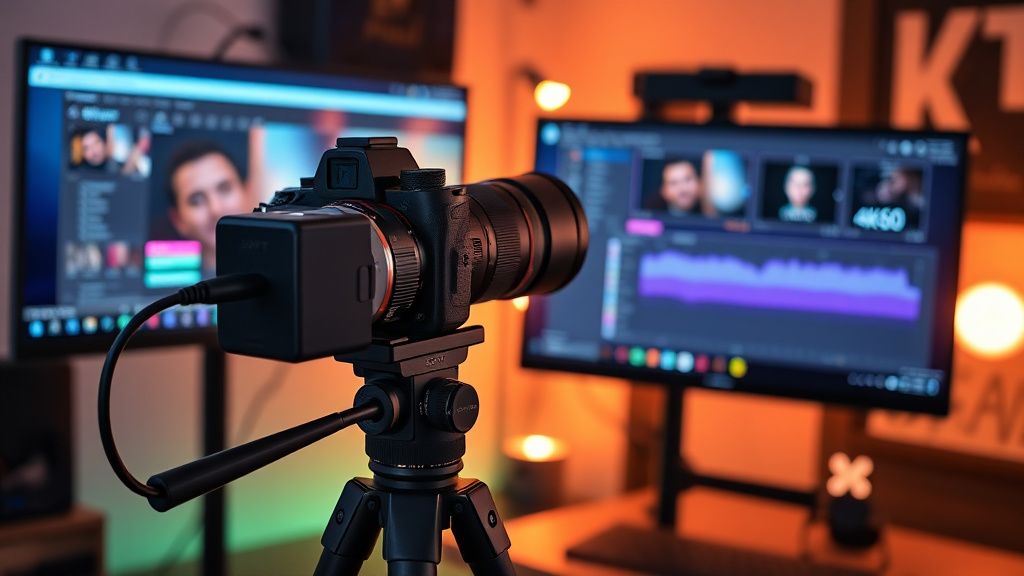
Sony A7S III live streaming setup with OBS on PC monitor showing 4K60 encoder settings

Sony A7S III live streaming setup with OBS on PC monitor showing 4K60 encoder settings
Zoom


Hey everyone! I'm diving into live streaming for the first time and I want to stream in 4K60 from my Sony A7S III to YouTube. I've got a beefy PC (RTX 3080, i9-10900K) and a Cam Link 4K, but I'm seeing conflicting info on how to actually achieve 4K60 without dropping frames or hitting high latency. I've tried OBS with the NVENC encoder, but YouTube's player seems to buffer a lot and my stream health shows 'excellent' yet viewers complain about delay.

I'm using a wired 1 Gbps connection, so bandwidth isn't an issue. I've set the bitrate to 45 Mbps in OBS (which is the max for 4K60 on YouTube), but I'm not sure if I should use CBR or VBR, and whether to enable 'Look-ahead' or 'Psycho Visual Tuning' for better quality. Also, should I use the 'ultra-low latency' option in YouTube Studio? I've read that it reduces the delay to ~5 seconds but might increase buffering for viewers. Any advice on the best encoder settings and streaming workflow would be greatly appreciated!

Replies (5)

Hey! I've been streaming with the A7S III for a while now. First off, the Cam Link 4K only supports HDMI 2.0, which can handle 4K60 but you need to make sure the camera is outputting 4:2:2 8-bit or 4:2:0 10-bit via HDMI. Set the camera to 'HDMI Output: 4K 60p' and 'HDMI Info Display: Off' to avoid overlays. In OBS, use the 'Video' tab to set the base and output resolution to 3840x2160, and the common FPS to 60. For the encoder, stick with NVENC (H.265/HEVC) if you want better compression at 45 Mbps, but note that YouTube accepts both H.264 and H.265 for live. I recommend H.265 for 4K60 to maintain quality. Set the rate control to CBR, and enable 'Look-ahead' and 'Psycho Visual Tuning' – they don't add significant latency on NVENC. Also, in YouTube Studio, definitely use the 'Ultra low latency' option – it's worth the trade-off. My stream delay is about 5 seconds and viewers rarely complain about buffering if you have a stable bitrate.
I agree with most of that, but I'd caution against H.265 for live streaming on YouTube. While YouTube supports it, some viewers on older devices may have trouble decoding it, causing playback issues. For maximum compatibility, stick with H.264. At 45 Mbps, H.264 can still look great for 4K60. Also, make sure you're using the 'High' profile and 'Level 5.2' in OBS's encoder settings. One thing that tripped me up: the Cam Link 4K doesn't support HDCP, so if your camera outputs protected content, you'll get a black screen. But for the A7S III, that's not an issue. Another tip: set the 'Keyframe Interval' to 2 seconds (which is the default) to help with seeking and latency. And in OBS, under 'Advanced', set the 'Process Priority' to 'Above Normal' to reduce dropped frames.
Sony FX3 shooter | Love color grading.


audioguru78 yazdı:

Set the rate control to CBR, and enable 'Look-ahead' and 'Psycho Visual Tuning' – they don't add significant latency on NVENC.


Actually, on NVENC, 'Look-ahead' can add a few frames of latency, but it's negligible. I've tested it. For live, I prefer to disable 'Look-ahead' and 'Psycho Visual Tuning' to reduce any potential encoding hiccups, but it's a personal choice. More importantly, check your OBS log for 'Skipped frames' due to encoding lag. If you see that, lower the preset from 'P5' (the default) to 'P4' or even 'P3' (slower but better quality). Also, make sure your GPU is in the 'Prefer Maximum Performance' power mode in NVIDIA Control Panel. And don't forget to set the 'Max B-frames' to 2 – it's the default for NVENC, but some guides say to set it to 0 for lower latency. I've found 2 is fine.
Always testing the YouTube algorithm.
0
I'm a bit late to the party, but I want to add that you should also consider using the 'Stream Health' section in YouTube Studio. It will show you if your bitrate is stable and if there are any network issues. Also, if you're using 4K60, make sure your upload speed is at least 50 Mbps – you have 1 Gbps so you're fine. One more thing: OBS has a 'Stream Delay' setting in the 'Advanced' tab; make sure it's set to 0. And if you want even lower latency, you can try using 'RTMP' with the 'Low Latency' enabled in OBS's stream settings, but that's only available for certain services. For YouTube, the 'Ultra low latency' option is the best you can do.
Creator burnout is real, take care guys.
Thanks everyone for the detailed responses! I followed your advice: switched to H.264, kept CBR at 45 Mbps, enabled 'Look-ahead' and 'Psycho Visual Tuning', set the keyframe interval to 2, and used 'Ultra low latency' in YouTube Studio. My stream is now running flawlessly with about 5 seconds of delay, and viewers report no buffering. The A7S III looks stunning in 4K60. I also tweaked the OBS process priority and disabled HDCP on the camera just in case. Problem solved – thanks for saving me hours of trial and error!
Always testing the YouTube algorithm.

You must register or log in to reply to this topic.

Related Topics & Similar Discussions

Best way to live stream a multi-cam interview with live switching in OBS? Category: Live Streaming
Best way to stream 4K gameplay with a single PC and a capture card? Category: Live Streaming
Best way to stream 4K gameplay with a single PC and capture card? Category: Live Streaming