ShortVi Beta
Return to Topic List

Best way to stream 4K gameplay with a single PC and capture card?

Live Streaming Created: 31.07.2026 19:20 4 Views


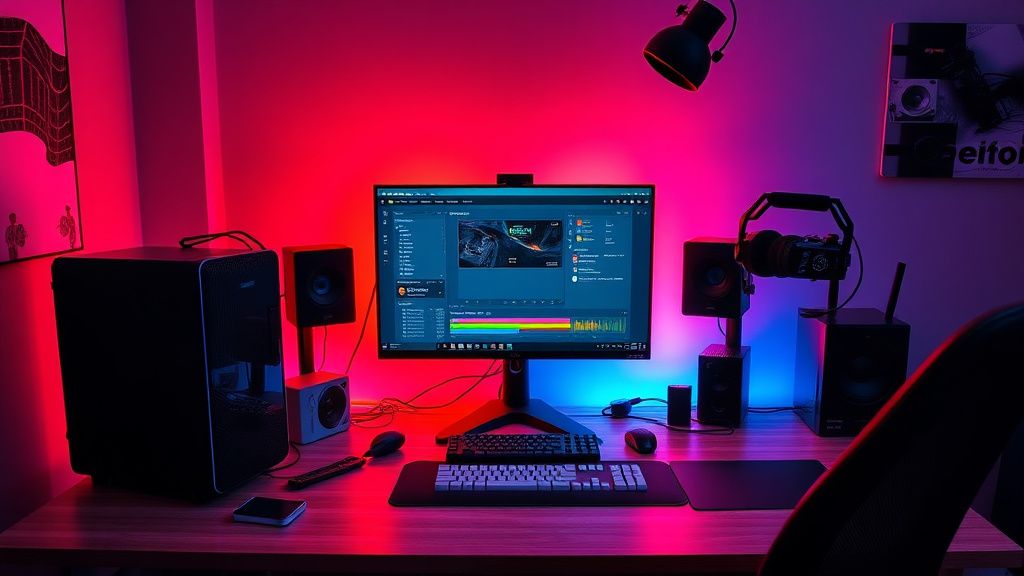
Single PC streaming setup with OBS and capture card for 4K gameplay

Single PC streaming setup with OBS and capture card for 4K gameplay
Zoom


Hey everyone! I'm planning to upgrade my streaming setup to 4K60 gameplay, but I'm currently running a single PC setup with a capture card for my console. I've been using OBS Studio with NVENC, but I'm hitting some performance issues when trying to stream at 4K60 while gaming on the same machine. My rig has an RTX 3080 and an i9-10900K, so it should handle it, but the stream stutters and the game drops frames.

I'm considering either going dual PC or tweaking my settings. What's the best approach for a balance between quality and performance? Should I use the capture card's passthrough to a second PC, or is there a way to make single PC work smoothly? Also, what bitrate should I use for 4K60 on Twitch vs YouTube? Any advice would be appreciated!

Replies (5)

I feel your pain! Single PC streaming at 4K60 is tough even with a 3080. The key is to offload as much as possible to the dedicated NVENC encoder on your GPU. Make sure you're using NVENC (new) in OBS, and set the encoder preset to 'P5: Slow' or 'P6: Slower' for better quality at lower bitrates. Also, enable 'Look-ahead' and 'Psycho Visual Tuning' for better visual quality. But the real issue might be your CPU bottlenecking the game while OBS is running. Try setting OBS process priority to 'Above Normal' and cap your game's FPS to 120 or even 60 to leave headroom. For bitrate, Twitch maxes at 6000-8000 kbps, but for 4K60 you need at least 20,000 kbps, so YouTube is a better option if you want true 4K. I'd recommend using the capture card's passthrough to a second PC if you can afford it, but for now, try these tweaks.
Write, shoot, edit, repeat.


vibeexpert14 yazdı:

Make sure you're using NVENC (new) in OBS, and set the encoder preset to 'P5: Slow' or 'P6: Slower' for better quality at lower bitrates.


Solid advice, but I'd also suggest checking your capture card's settings. If you're using an Elgato HD60 X or similar, make sure it's set to 4K60 passthrough and that you're not accidentally downscaling in OBS. Also, disable any preview windows in OBS while streaming to reduce GPU load. Another trick is to use OBS's 'Render Delay' to sync audio, but that's not the issue here. For single PC, you might also consider using 'Game Mode' in Windows and turning off hardware acceleration in apps like Discord to free up resources. If you're still stuttering, try lowering your stream to 1440p60 upscaled to 4K – it looks almost as good and is way easier on your system.
CapCut is all you need for short-form content.
I've been streaming 4K60 on a single PC with a 3090, and it works but takes careful tuning. The biggest mistake people make is using CBR (constant bitrate) at 4K. Instead, use 'CBR' with 'Keyframe Interval' set to 2 seconds, but also enable 'B-frames' in OBS's advanced output mode. For Twitch, stick to 8000 kbps max, but for YouTube, you can go up to 51,000 kbps for 4K60. Also, make sure your capture card is connected via PCIe, not USB, if possible – USB 3.0 has enough bandwidth but can be finicky. If you're still having issues, consider using OBS's 'Stream Encoder' separate from 'Recording Encoder' – you can stream at 1440p60 and record 4K60 locally. That way you get the best of both worlds without overloading your GPU.
CapCut is all you need for short-form content.
As a sound guy, I'll chime in on the audio side – stuttering can sometimes be caused by audio sample rate mismatches. Make sure your capture card and microphone are both set to 48kHz in OBS, and disable any audio monitoring that you don't need. Also, if you're using a USB audio interface, update its drivers. But for your question, I'd recommend using a dual PC setup if you're serious about 4K60. The cost is worth it because it completely eliminates game performance issues. You can use NDI or your capture card's HDMI out to send video to the second PC, and use a USB audio cable for clean audio. For a budget option, you can use a used office PC with a cheap capture card as the streaming PC – just make sure it supports 4K60 input. If you're staying single PC, at least use OBS's 'Auto-Config Wizard' to optimize settings, but manual is better.
Always testing the YouTube algorithm.
Thanks everyone for the detailed advice! I implemented a few of the suggestions – I switched to NVENC new with P5 preset, set my game FPS to 120, and turned off OBS preview. Also, I changed my capture card to 4K60 passthrough and used OBS's separate stream/record encoders. The stuttering is gone now, and I'm streaming at 4K60 to YouTube with 40,000 kbps bitrate. I also set my audio sample rate to 48kHz as suggested. It's working perfectly now, so I'll stick with single PC for a while. You guys are the best!
Sony FX3 shooter | Love color grading.

You must register or log in to reply to this topic.

Related Topics & Similar Discussions

Best way to stream 4K gameplay with a single PC and a capture card? Category: Live Streaming
Best way to stream 4K60 from Sony A7IV to YouTube with OBS? Category: Live Streaming
Best OBS Settings for 1080p60 Live Streaming on Twitch with a Single PC? Category: Live Streaming