ShortVi Beta
Return to Topic List

Best way to live stream a multi-cam interview with live switching in OBS?

Live Streaming Created: 01.08.2026 11:43 1 Views


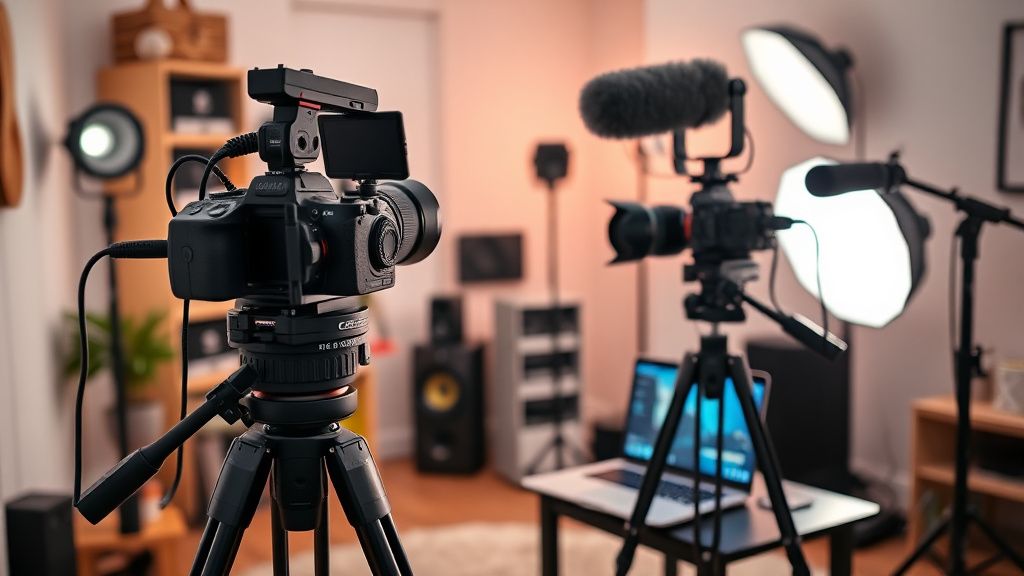
Multi-camera live streaming setup with OBS and capture cards in a home studio

Multi-camera live streaming setup with OBS and capture cards in a home studio
Zoom


Hey everyone! I'm planning to start a weekly interview show where I have a guest in-studio (or sometimes remote via Zoom). I want to do a multi-cam setup with live switching in OBS to keep it dynamic. I currently have a Sony A7 III and a Panasonic GH5, plus a webcam. I know I need capture cards for the cameras, but I'm confused about the best workflow for live switching, audio sync, and overlays.

Also, I'm worried about internet bandwidth and bitrate settings for YouTube Live. I have a 20 Mbps upload. What's the recommended bitrate for 1080p60? And any tips on reducing latency for remote guests? I'd love to hear your experiences and any pitfalls to avoid.

Replies (4)

Great question! For your Sony A7 III and GH5, you'll need HDMI capture cards (like Elgato Cam Link 4K or a dual HDMI capture card). Make sure your cameras are set to clean HDMI output (disable info display) and use a dummy battery to avoid overheating. For audio, use a separate audio interface (e.g., Focusrite Scarlett) and connect your mic directly to the computer, not through the camera, to avoid sync issues.

For OBS, create scenes for each camera angle and use the 'Preview' and 'Program' windows for live switching (or use a hardware switcher like ATEM Mini if you want physical buttons). Set your canvas to 1920x1080 and use the 'Video Capture Device' sources. For audio sync, use OBS's 'Audio Advanced' properties to add manual sync offset if needed.

Regarding bandwidth: 20 Mbps upload is fine for 1080p60 at 6000-8000 kbps (YouTube's recommended max is 9000). I'd suggest 6000 kbps to be safe, and use the 'CBR' rate control. For latency, use 'Low Latency' mode in OBS (or 'Ultra Low Latency' if you can) and set your keyframe interval to 2 seconds. Also, enable 'B-frames' to 0 for lower latency.
Keep rendering, keep uploading.
I agree with pixelspark21. For remote guests, consider using a dedicated video call tool like Zoom or Skype, and bring that window into OBS via 'Window Capture' (or better, use NDI if you can). To reduce latency, have your guest use a wired ethernet connection and enable 'Original Sound' in Zoom (or disable echo cancellation) for better audio. You can also use a service like vdo.ninja for browser-based low-latency video.

One tip: use OBS's 'Auto-Switch to Scene' plugin if you want to automate switching based on audio levels, but I prefer manual switching for interviews. Also, don't forget to set your streaming key and test with a private stream first. And check your CPU usage – if you're using a laptop, you might need to use 'NVENC' (if you have an NVIDIA GPU) to offload encoding.
Shorts and Reels creator | DaVinci Resolve fan!
Solid advice so far. I'd add that you should also think about your audio mix: use OBS's 'Advanced Audio Properties' to set your mic to 'Monitor and Output' and your remote guest's audio to 'Output only' to avoid echo. For a more professional look, create lower thirds and a 'B-Roll' scene with a screen capture or slideshow. Use the 'Streamlabs' or 'StreamElements' overlays for alerts if you plan to have donations or subscriber notifications.

Also, make sure to set up a 'Start' and 'End' scene with a countdown or 'Be Right Back' screen to avoid dead air. And for recording, you can enable 'Twitch VOD Track' or just record locally in OBS as a backup. If you have a second monitor, use it for OBS's 'Studio Mode' to preview scenes before switching.

Finally, on bandwidth: 20 Mbps is enough, but if you're also downloading files or have other devices on your network, prioritize your streaming PC via router QoS. And always use a wired connection for streaming.
Thanks everyone for the detailed help! I set up my cameras with capture cards, used the ATEM Mini for switching (I borrowed one), and followed your bitrate and audio advice. My first test stream went great – no sync issues, and the remote guest via Zoom was smooth with low latency. I used the 'Low Latency' mode and it worked perfectly. I'll definitely use the 'Start' and 'End' scenes next time. Problem solved – appreciate it!
Focus on retention, the rest will follow.

You must register or log in to reply to this topic.

Related Topics & Similar Discussions

Best way to stream 4K60 from A7S III to YouTube with low latency? Category: Live Streaming
Best way to stream 4K gameplay with a single PC and a capture card? Category: Live Streaming
Best way to stream 4K gameplay with a single PC and capture card? Category: Live Streaming