ShortVi Beta
Return to Topic List

Best workflow for integrating 3D objects into 2D footage in After Effects?

VFX & Motion Graphics Created: 29.07.2026 11:01 10 Views


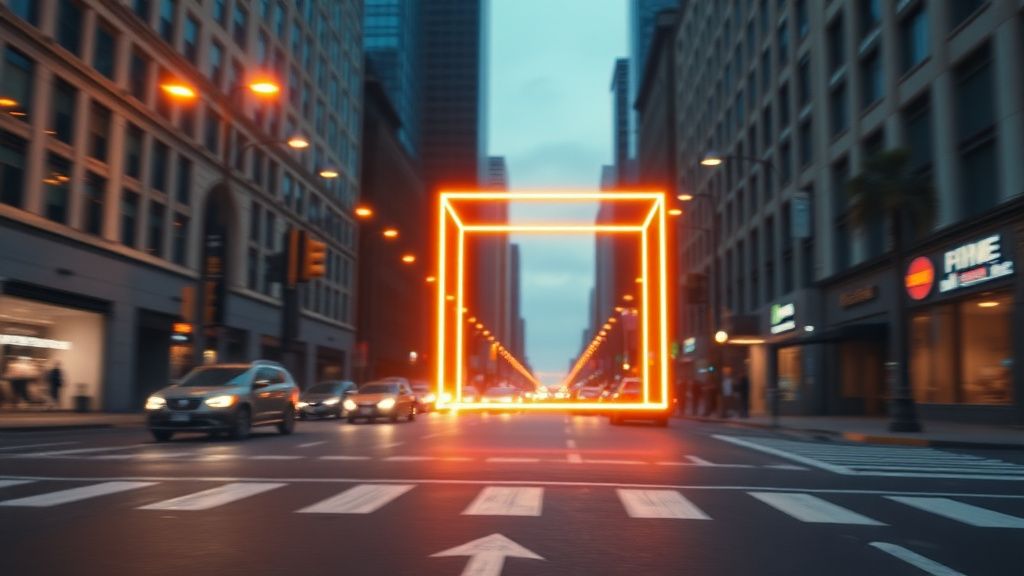
3D object composited into live-action footage with realistic lighting and shadows in After Effects

3D object composited into live-action footage with realistic lighting and shadows in After Effects
Zoom


Hey everyone, I'm working on a project where I need to composite some 3D objects (rendered from Blender as EXR sequences with depth passes) into 2D footage shot on a Sony A7IV. I've been using Element 3D in After Effects, but I'm struggling with realistic lighting matching and motion blur. The 3D objects look too sharp and floaty compared to the live-action plate.

I've tried using the Camera Tracker in AE, but my 3D scene doesn't quite lock in. Should I be using a different approach, like rendering the 3D elements with a virtual camera match or using separate passes for reflection and shadow? Any tips on getting that seamless integration? Also, I'm on a PC with a 3090, so hardware isn't an issue.

Replies (6)

Hey creatorengine77, great question! The floaty look is often due to incorrect motion blur and depth of field matching. For your EXR sequences, make sure you're rendering with the exact same shutter angle and frame rate as your footage (e.g., 180° shutter at 24fps). In After Effects, apply CC Force Motion Blur to your 3D layer and set samples to 16-32 for smoother results. Also, use the depth pass from Blender as a matte to add a camera lens blur that matches your A7IV's aperture (try f/2.8 to f/4 for shallow DOF). For the camera track, try using the 3D Camera Tracker in AE with the 'Solve for Distortion' option enabled, and manually adjust the focal length to match your lens (e.g., 35mm, 50mm). Then parent your 3D null to the tracked camera and import your Blender scene with the same camera settings.
Sony FX3 shooter | Love color grading.
I've had good results using a different method: render your 3D elements in Blender with a transparent background and separate passes (diffuse, specular, shadow, reflection, alpha). Then in AE, use the 'Set Matte' effect with the alpha pass to composite. For lighting, create a point light in AE that matches the key light direction from your footage (use the 'Light' tool in the tracker to sample). Also, add a subtle ambient light and a shadow catcher plane in Blender to cast realistic shadows onto the ground. For motion blur, enable 'Motion Blur' in the Blender render settings with the same shutter as your footage, and render as OpenEXR with 16-bit float to preserve detail. This workflow gave me much better results than Element 3D for complex scenes.
Sony FX3 shooter | Love color grading.


videomaker56 yazdı:

I've had good results using a different method: render your 3D elements in Blender with a transparent background and separate passes (diffuse, specular, shadow, reflection, alpha). Then in AE, use the 'Set Matte' effect with the alpha pass to composite.


That's a solid approach! I'd add that for the shadow pass, make sure to use a 'Shadow Catcher' material in Blender (set to 'Shadow' in the Material Properties under Settings > Shadow Mode) so it only captures shadows without the ground plane. Then in AE, use the shadow pass as a Multiply layer over your footage. Also, for reflections, render a reflection pass with a glossy environment map that matches the lighting of your plate. One more tip: use the 'Color Finesse' plugin or Lumetri Color to grade the 3D elements to match the footage's color temperature and contrast—often the 3D render is too clean, so add a bit of grain with the 'Add Grain' effect to match the A7IV's noise profile.
Always testing the YouTube algorithm.
If you're still getting floaty results, check your depth pass alignment. In Blender, render a 'Z' pass (depth) and import it into AE as a separate EXR. Use the 'Camera Lens Blur' effect with the depth pass as the blur map, and set the 'Iris Shape' to 'Square' (simulates cinema lenses). Also, ensure your 3D objects have proper contact shadows—add a 'Contact Shadow' layer in AE using the 'Drop Shadow' effect with a soft, low opacity shadow (e.g., 30% opacity, distance 5px, softness 10px) positioned based on your key light. For motion blur, if you're using Element 3D, enable 'Multi-Sample' in the render settings and set samples to 8 or 16. Also, consider using the 'ReelSmart Motion Blur' plugin (RSMB) for more realistic blur that matches the footage's motion vectors.
TikTok growth is all about the first 3 seconds hook.
Thanks everyone for the detailed advice! I combined tips from all of you and finally got it working. I re-rendered my Blender scene with separate passes (diffuse, specular, shadow, reflection, alpha, depth) using the same shutter angle and camera settings as my A7IV footage. In AE, I used the 3D Camera Tracker with distortion solve, parented a null, and added a point light matching the key light direction. The depth pass with Camera Lens Blur and the shadow pass as a Multiply layer fixed the floaty look. I also added grain with Add Grain to match the footage. It now looks seamless! Thanks again for the help.
Always testing the YouTube algorithm.
Glad to hear you got it working, creatorengine77! That’s a solid pipeline you’ve landed on. One thing I’d add for anyone still tweaking this: check your gamma and color space on the EXR import—Blender’s Filmic view transform can throw off your blacks and highlights if AE is interpreting it as sRGB instead of linear. I usually set the footage interpretation to “Linear” and then use a Lumetri or a simple curves adjustment to pull the contrast back to match the plate. That alone saved me hours of fighting that “CG” look.

Also, if you haven’t tried it yet, the newer versions of AE have improved the 3D Camera Tracker with better parallax handling on handheld shots. I’ve been using the “Enhanced” solve option with a manual focal length override, and it’s been way more stable for A7IV footage with slight rolling shutter. Curious if you’re on the latest version or still on an older build—that might be worth a test if you run into tracking drift on future shots.

You must register or log in to reply to this topic.

Related Topics & Similar Discussions

After Effects 3D Camera Tracker Drift: Any Fix for Long Takes? Category: VFX & Motion Graphics
Best Way to Create Realistic Fire and Smoke Simulations in Houdini for a Product Ad? Category: VFX & Motion Graphics
How to create a realistic 3D camera shake in After Effects for a handheld look? Category: VFX & Motion Graphics